
How to Bold Text on LinkedIn, Facebook, and iPhone (No Formatting Bar Needed)
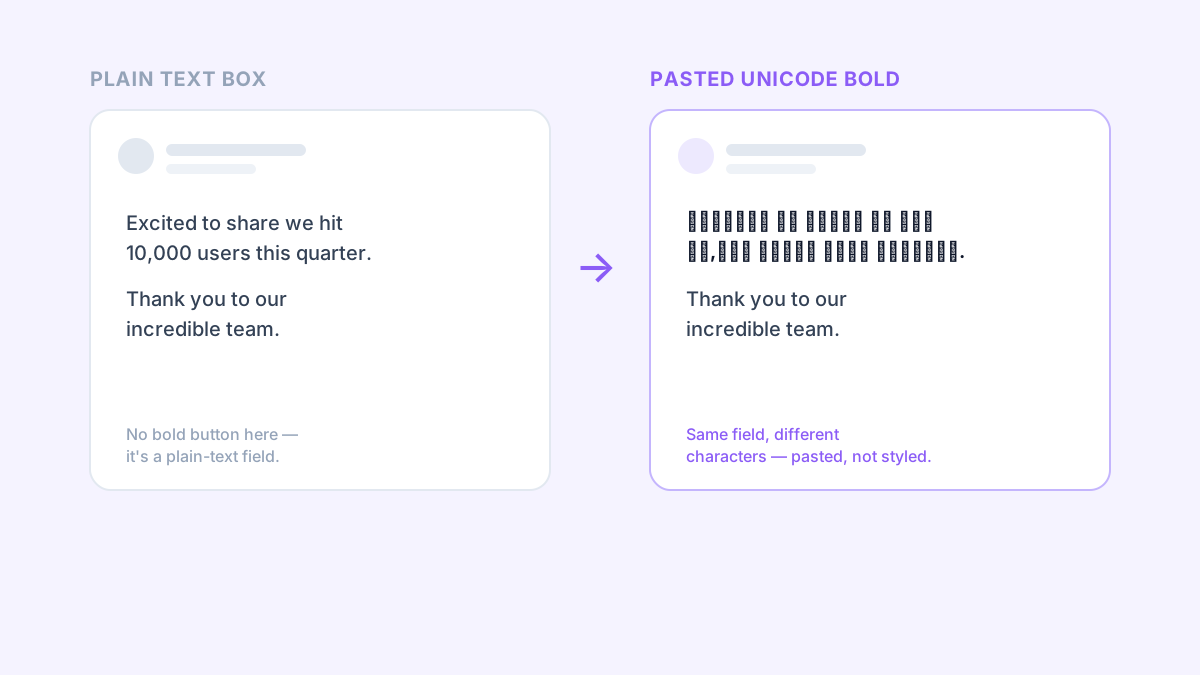
Highlight a sentence in a LinkedIn post or a Facebook update and you won't find a bold button anywhere, because there isn't one. Same story in an iPhone text message. These are plain-text boxes with no rich-text option, which is exactly why so many posts you scroll past still manage to show up in 𝐛𝐨𝐥𝐝. It's not a hidden setting — it's a small trick using Unicode characters, and it works in any text field that will accept a paste, no formatting menu required.

Why these apps won't let you bold text
LinkedIn's and Facebook's post composers, and iPhone's Messages app, all save what you type as plain text under the hood. There's no formatting layer sitting underneath the text box, so there's nothing for a bold button to switch on even if one existed. Word processors and note-taking apps store text with hidden style tags; these composers don't, which is the real reason the option is missing rather than an oversight anyone's likely to fix.
The real trick: Unicode bold characters
Unicode, the character set every app on your phone reads, includes a full second alphabet of letters that were designed to look bold: 𝐀, 𝐁, 𝐂, and so on through the whole set, sitting in a completely different part of the table from the regular letters your keyboard types. A bold text generator swaps your normal letters for those look-alike characters. The result isn't formatting applied to your text — it's different characters entirely, which is exactly why it pastes into a plain-text box and still shows up bold: as far as the app is concerned, it's just displaying the character you gave it. Type your line into our bold text generator and copy the result straight into any of the apps below.
How to bold text in a LinkedIn post
- Write your post in the bold text generator, or type it there first if you're starting from scratch.
- Copy the bold version it produces.
- Paste it into the LinkedIn post composer where you want the emphasis. It shows up bold immediately, because you're pasting the styled characters directly.
How to bold text on Facebook
The steps are identical to LinkedIn, since Facebook's composer is plain text too: generate the bold version, copy it, and paste it into your post, comment, or bio. It works the same way in a Page description or a Group post, since every one of those fields is reading the same plain-text characters.
How to bold text on iPhone
In Messages, and most other apps
iPhone's Messages app has no formatting bar, so a text you send can't carry real bold formatting — the Unicode trick is the only way to make a word stand out there. Generate the bold text, copy it, then paste it straight into the message field before you hit send. The same approach works in any other iPhone app that's just a plain text box: a bio field, a caption, a plain-text note.
In Notes, the one exception
Notes is a genuine rich-text app, so it actually has real bold built in and you don't need the Unicode trick there. Select your text until the popup menu appears, tap the arrow to reveal more options if BIU isn't showing yet, tap BIU, then tap Bold. That applies true formatting Apple's own system understands, which behaves better than Unicode text if you ever plan to copy that note somewhere with its own bold support, like Pages or Mail.
One tradeoff worth knowing about
Unicode bold letters aren't the letters a screen reader expects, so assistive technology can skip them, read them out one symbol at a time, or announce them as something like "mathematical bold capital A" instead of the word you meant. It's also invisible to search: LinkedIn and Facebook can't index those characters as the normal words they resemble, so bolding a keyword you want people to find actually hides it from search. Use it the way the best posts do: one line, one key phrase, or a short header, then leave the rest of your writing in normal text.
The same trick carries over to Twitter/X, WhatsApp, and Instagram captions, anywhere a text field won't give you a formatting bar. Browse the full range of styles, not just bold, on our fancy font generator or the platform-specific pages for LinkedIn and Facebook.